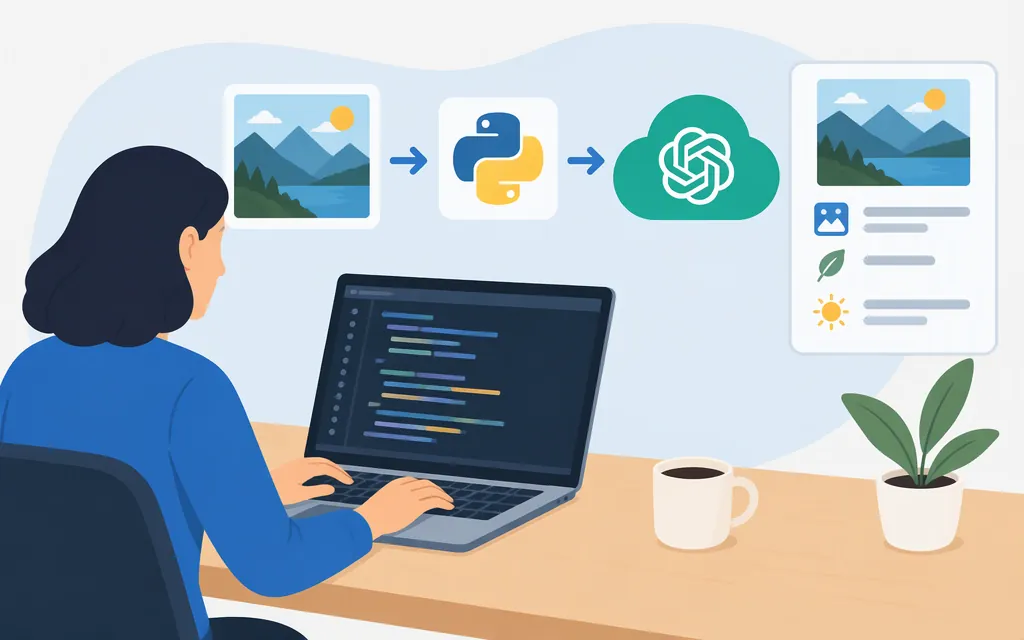
To have an OpenAI model analyze an image and answer a question about it, use the Responses API with a model that accepts image input. Put the question in an input_text content item and the image in an input_image item. OpenAI documents image URLs, Base64 data URLs, and Files API file IDs as image-input methods. (developers.openai.com)
For example, GPT-5.5 is listed with image input and the Responses endpoint. Check the model page before deployment for current availability and supported endpoints. The Images API serves a different purpose: generating images as output, optionally using images as input. (developers.openai.com)
Send a local image with a question in Python
This example reads a local JPEG, encodes it as a Base64 data URL, sends it with a question, and prints the text answer. The Python SDK's input-image type documents image_url as accepting either a fully qualified URL or a Base64 data URL. The example omits the optional detail field. It is illustrative, not a reported live test. (raw.githubusercontent.com)
Prerequisites: Python 3.10 or later, the OpenAI Python SDK, an API key, and a JPEG named photo.jpg in the working directory. Install or update the SDK and set your key in the environment: (developers.openai.com)
python -m pip install --upgrade openai
export OPENAI_API_KEY="your_api_key"
import base64
from pathlib import Path
from openai import OpenAI

client = OpenAI()

image_bytes = Path("photo.jpg").read_bytes()
image_data_url = (
    "data:image/jpeg;base64,"
    + base64.b64encode(image_bytes).decode("utf-8")
)

response = client.responses.create(
    model="gpt-5.5",
    input=[
        {
            "role": "user",
            "content": [
                {"type": "input_text", "text": "What is shown in this image?"},
                {
                    "type": "input_image",
                    "image_url": image_data_url,
                },
            ],
        }
    ],
)

print(response.output_text)
Expected result: the program prints a text answer about the image. For example, a photo of a bicycle might produce a short description identifying a bicycle. The exact answer depends on the image and prompt.
Choose an image-input method
| Method | Use it when | What to provide |
|---|---|---|
| Image URL | The image is hosted and you want to reference it directly. | A fully qualified image URL. |
| Base64 data URL | Your application has the image bytes locally or from an upload. | A data URL, such as data:image/jpeg;base64,.... |
| Files API file ID | You have uploaded the image with the Files API. | The uploaded file's ID in an image-input item. |
OpenAI documents that multiple images can be included in a request and that image inputs count as tokens for billing. The documentation excerpts cited here do not establish the accepted image formats, a per-image or total-request size ceiling, a maximum image count, dimension restrictions, or URL-fetch conditions. Verify those requirements for your selected model and input method before setting application-side validation limits; do not assume ChatGPT upload limits apply to the API. (developers.openai.com)
Image understanding is different from image generation
Choose the path based on the result you need:
- Analyze an image and get a text answer: use the Responses API with a model that accepts image input.
- Generate an image or edit one to produce an image output: use the Images API, or use the Responses API image-generation tool for a conversational workflow.
An image supplied to a generation or editing workflow is not the same as an image-analysis request. (developers.openai.com)
Troubleshoot image-input errors
- Model not found or no access: Check the model ID, availability, and supported endpoint on the current model page. Do not keep retrying a retired model name. (
developers.openai.com) - Authentication failure: Check that the API key is valid and belongs to the intended organization or project.
- Invalid request or image: Confirm that the image is sent as an
input_imageitem and the question as a separateinput_textitem. Check that the image reference uses a documented input method. (developers.openai.com) - Credit, usage, or rate-limit errors: Check the returned error code and the applicable account usage or rate limit before retrying.
A January 2024 community thread reported an error saying gpt-4-vision-preview did not exist or the user lacked access. A participant suggested a Tier 1 and $5-credit prerequisite, but the thread does not establish that as current policy or explain what fixed the error. Do not rely on that historical advice for a current integration.
Validate before production
- Run the example with an image that meets the documented requirements for your chosen model and check that
response.output_textcontains an answer. - Test prompts and images representative of your application, and evaluate whether the answer identifies the visual details your use case requires.
- Confirm that the selected model remains available and supports image input through the endpoint you use.
- Before setting hard-coded format, size, or dimension validation rules, confirm the current requirements for the chosen model and input method. The specific limits are not established in the documentation excerpts cited here.
Bottom line: for image understanding, send a text prompt and an image to the Responses API. Choose a URL, Base64 data URL, or Files API file ID based on where the image lives. Use image-generation endpoints when you need an image generated or edited as output. (developers.openai.com)
Sources
Images and vision | OpenAI API
Responses | OpenAI API Reference
OpenAI Python SDK: Response input image parameter
Using gpt-4-vision-preview with the API and how to upload images to chat GPT using Python Code