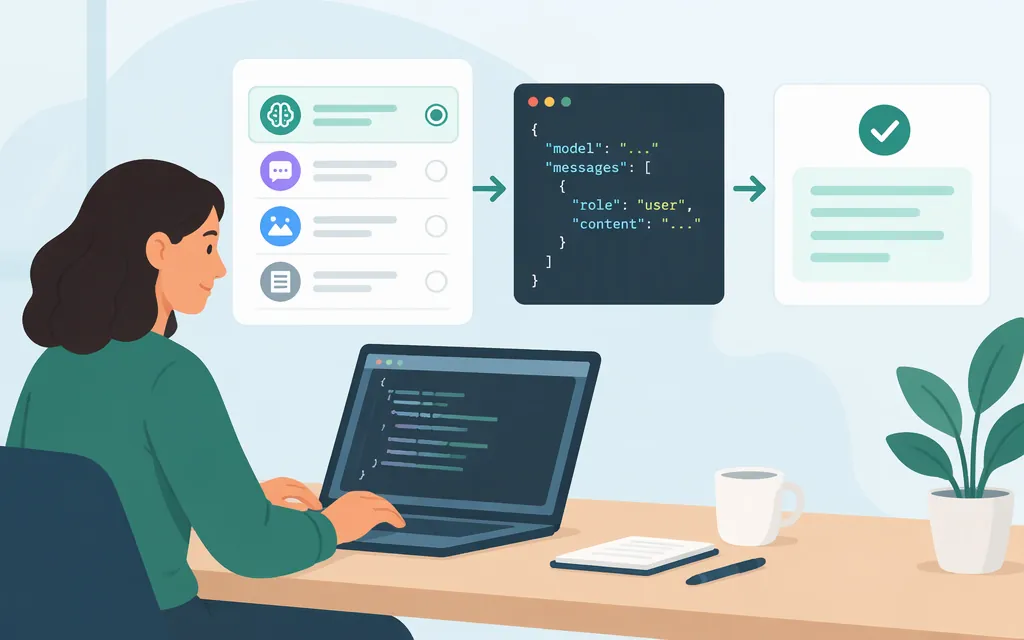
The OpenAI API lets developers add model-powered capabilities to their own applications. For a first text-generation request, OpenAI’s current quickstart uses the Responses API and its official JavaScript SDK. Other tasks—such as embeddings, image generation, audio, and moderation—have specialized APIs or guides, so choose based on what your application needs rather than treating every API as interchangeable. (Developer quickstart)
What can you build with the OpenAI API?
The API provides an interface for applications to send input to OpenAI models and use their responses. OpenAI describes support for tasks including text generation, natural-language processing, and computer vision. The available input, output, and tools depend on the API and model you select. (Developer quickstart)
Examples include:
- Generate or transform text: draft a response, summarize text, or classify content using a model response.
- Work with images: send image input to a compatible model for image understanding, or use the Image API to generate or edit an image. The Responses API can also support image generation in conversational or multi-step workflows; image input and image generation are different tasks. (
developers.openai.com) - Search by meaning: generate text embeddings for semantic search, similarity, clustering, or recommendations. (
developers.openai.com) - Process audio: use file transcription for completed recordings, Realtime transcription for incoming live audio, or text-to-speech for generated speech. For conversational voice applications, consult the audio guide, which distinguishes those workflows from dedicated transcription, translation, or speech-generation APIs. (
developers.openai.com) - Apply a safety check: use the Moderation API to classify text or images for potentially harmful content. The current moderation guide says its moderation model does not classify audio. (
developers.openai.com)
These are distinct API capabilities, not a guarantee that every model or endpoint supports every task. Check the relevant guide and model documentation before choosing an implementation. (API reference; Responses API overview)
The API is for building software integrations; it is not the same thing as using ChatGPT’s interface. ChatGPT and API billing are separate. Eligible subscriptions may offer API credits for a linked API organization, but a ChatGPT subscription by itself does not establish API access or funding. (Managing billing for ChatGPT and the API platform)
Which API surface should you start with?
| If your application needs… | Start by looking at… | Why |
|---|---|---|
| Model-generated text or a request that may use built-in tools | Responses API | The official quickstart uses it for a basic text request. Its overview describes text and image inputs, stateful interactions, and built-in tools. (Quickstart; Responses API overview) |
| Text similarity, semantic search, or vector representations | Embeddings API | The embeddings guide describes turning text into vectors and lists search, clustering, recommendations, and classification as uses. (Embeddings guide) |
| Generate or edit a single image from a prompt | Image API | OpenAI’s image guide recommends it for single-image generation or editing. For conversational, multi-step image workflows, the Responses API can use image generation as a built-in tool. (Image generation guide) |
| Transcribe a completed audio recording | File transcription API | The transcription guide describes uploading a recording for a transcript; for audio arriving live from a microphone, call, or stream, it points to Realtime transcription instead. (File transcription guide) |
| Generate speech from text | Dedicated text-to-speech API | The audio guide distinguishes dedicated speech-generation workflows from conversational-agent workflows. For conversational voice, consult the audio guide. |
| Classify text or images for moderation | Moderation API | Use it to classify standalone inputs. The moderation model described in the guide accepts text and image inputs, not audio. (Moderation guide) |
| An existing integration built on another API surface | That surface’s current reference and migration guidance | Request formats and capabilities differ. Confirm current support before changing or extending an existing integration. (API reference) |
This is a starting guide, not a complete catalog or compatibility matrix. The API reference and task-specific guides are the place to check exact operations, parameters, supported inputs, and response schemas. (API reference)
Make your first request with JavaScript
You’ll need an OpenAI API account, an API key for the organization or project you intend to use, and a server-side JavaScript environment. Before running a paid request, check that the API organization has an available credit balance or an appropriate payment setup, and that the model is available to your account. API billing is separate from ChatGPT billing; eligible ChatGPT subscriptions may provide API credits only when the benefit is available and activated for a linked API organization. (Managing billing for ChatGPT and the API platform; API credits benefit for eligible ChatGPT subscriptions)
The following follows the official quickstart pattern: install the SDK, expose the key as an environment variable, then call responses.create. The model name below is the one shown in that quickstart; consult the current model documentation if it is unavailable for your account or use case. (Developer quickstart)
-
Create an API key in the OpenAI API dashboard and keep it private. (Developer quickstart)
-
Set the key in your terminal environment. For macOS or Linux:
export OPENAI_API_KEY="your_api_key_here"For PowerShell, set the environment variable using the method appropriate to your session or deployment environment. Do not paste a real key into shared code or a public repository. (Developer quickstart)
-
Install the SDK and save this as
example.mjs:npm install openaiimport OpenAI from "openai"; const client = new OpenAI(); const response = await client.responses.create({ model: "gpt-6-astra", input: "Write a one-sentence bedtime story about a unicorn." }); console.log(response.output_text); -
Run it:
node example.mjsExpected outcome: the SDK sends the input to the Responses API and prints the response text. This is the quickstart’s example flow, not a claim that this article independently ran the code. (Developer quickstart)
The SDK reads OPENAI_API_KEY from the environment, so the example does not put the secret directly in the source file. In a deployed application, load the secret through your hosting environment or secret manager rather than relying on a developer’s local shell configuration. (Developer quickstart; API key safety)
Before using the integration in production
- Keep credentials on your server. Do not expose an API key in a browser, mobile app, or public repository. OpenAI recommends routing requests through your backend so the key remains secure. (API key safety)
- Use a key-management process. Use separate credentials where appropriate and limit access to people and services that need it. See OpenAI’s key-safety guidance for current recommendations. (API key safety)
- Plan for rate limits. Limits can apply at organization or project level and vary by model. Check the limits for your project and model, and design request handling for throttling rather than assuming unlimited throughput. (Rate limits)
- Handle errors deliberately. Check the API error code before retrying. If a 429 indicates a request or token rate limit, pace requests and follow the rate-limit retry guidance. If it indicates exhausted credits or a spending or usage limit, fix the balance or limit first; retrying alone will not restore access. (Troubleshooting API rate limits and 429 errors)
- Monitor usage and spend. Spend alerts send notifications but do not stop API traffic. Configured hard spend limits can stop affected requests when tracked spend reaches the limit, but enforcement is not instantaneous and recorded spend can exceed the configured amount slightly. Organization and project limits may both apply, so confirm the settings for the organization and project you use. (Troubleshooting API usage and spend limits)
- Validate model output in your application. Treat model responses as data to review and handle, not as guaranteed correct or automatically safe application logic. Validate against your requirements before taking consequential actions.
API prices, model availability, and limits can vary. Check the official pricing, model, and project-limit information that applies to your intended deployment instead of relying on old examples or a fixed limit copied from an overview article. (API reference; Rate limits)
Official next steps
Start with the OpenAI API developer quickstart for setup and a first request. Use the API reference to check endpoint schemas, authentication, errors, and rate limits, and consult the Responses API overview for its capabilities. For specialized workflows, see OpenAI’s guides for embeddings, image generation, audio, file transcription, and moderation. For launch planning, see API key safety, rate limits, and the API usage and spend limits guidance.