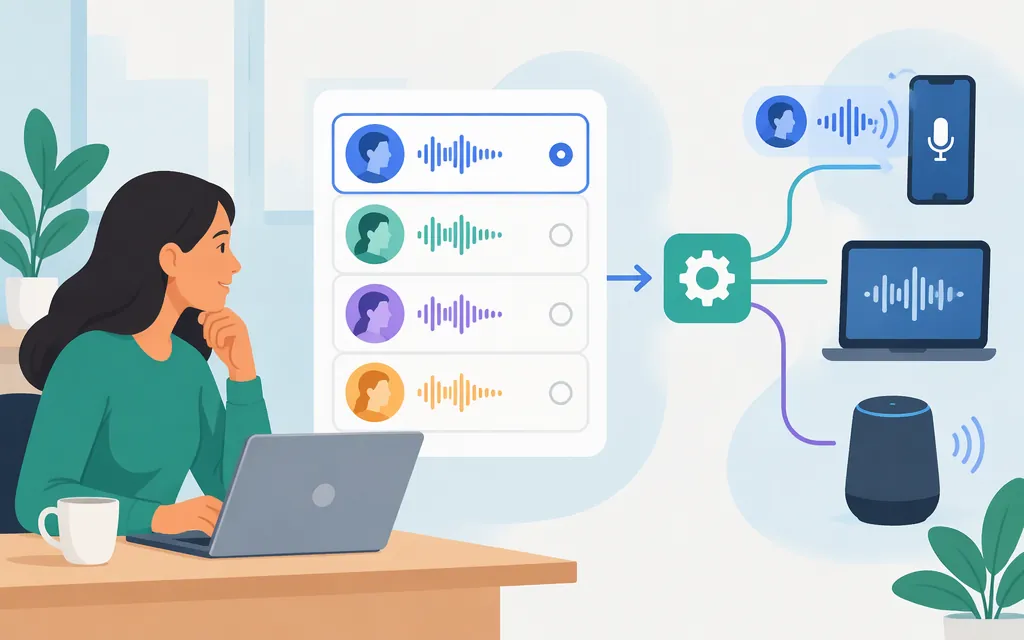
Short answer: For an interactive browser voice assistant, the Agents SDK quickstart uses gpt-realtime-2.1 in a Realtime session. For live captions or transcription, configure a transcription session and select a transcription model. For spoken translation, use a translation session. These are distinct workflows, so choose by the job rather than treating the model names as interchangeable. (developers.openai.com)
OpenAI’s May 7, 2026 announcement described GPT-Realtime-2 for voice agents, GPT-Realtime-Translate for streaming translation, and GPT-Realtime-Whisper for streaming transcription. The announcement is useful for understanding those intended roles; use the current API documentation for implementation details.
Choose a model by the job
| What you’re building | Documented starting point | Selection detail |
|---|---|---|
| An interactive assistant that listens and speaks | gpt-realtime-2.1 |
Set it as the model for a Realtime session. The Agents SDK quickstart uses this model. |
| Streaming captions or transcription | A Realtime transcription session | The current guide recommends gpt-live-transcribe for new integrations. gpt-realtime-whisper is listed as an option for existing integrations where supported. |
| Live spoken translation | gpt-realtime-translate |
Use the dedicated translation session rather than a standard assistant conversation. |
OpenAI’s overview says gpt-realtime-whisper can be used in existing integrations where supported, but it is not the recommended starting model for a new transcription integration. The May 2026 announcement’s language-coverage claim—more than 70 input languages and 13 output languages for translation—is not a language-by-language quality guarantee. Check current documentation and test the languages and audio conditions your application needs. (developers.openai.com)
Start a browser voice session
This example follows the OpenAI Agents SDK’s browser path. In a browser with WebRTC support, the SDK’s default transport manages microphone capture and audio playback. Your server creates a short-lived Realtime client secret; the browser receives that secret, not your permanent API key. (openai.github.io)
The snippets below are documentation-based examples, not a claim that this article’s code has been executed. The server example assumes Node.js with fetch available and Express installed. The browser example assumes an ES-module build that can import @openai/agents/realtime.
1. Create an Express route for the client secret
Install Express with npm install express. Set OPENAI_API_KEY in the server environment. This minimal server creates an Express app, parses JSON, and exposes a route; add your application’s normal authentication and abuse controls before using the route in a deployed app.
import express from "express";

const app = express();
app.use(express.json());

app.post("/api/realtime-token", async (req, res) => {
  try {
    const upstream = await fetch(
      "https://api.openai.com/v1/realtime/client_secrets",
      {
        method: "POST",
        headers: {
          Authorization: `Bearer ${process.env.OPENAI_API_KEY}`,
          "Content-Type": "application/json",
        },
        body: JSON.stringify({
          session: {
            type: "realtime",
            model: "gpt-realtime-2.1",
          },
        }),
      },
    );

    const data = await upstream.json();
    if (!upstream.ok || !data.value) {
      return res.status(502).json({ error: "Could not create a Realtime token" });
    }

    res.json({ value: data.value });
  } catch {
    res.status(500).json({ error: "Could not create a Realtime token" });
  }
});

app.listen(3000, () => {
  console.log("App listening on port 3000");
});
The client-secret endpoint accepts session configuration, and the response includes a short-lived secret that can be passed to a frontend without exposing the main API key. The API reference notes that a secret can be used to create multiple sessions until it expires; this example nevertheless requests a new secret when starting a session. (developers.openai.com)
2. Connect from the browser and provide start/stop controls
Install the SDK with npm install @openai/agents zod. Add buttons with the IDs used below, then include this code in your browser entry point. Each start creates a new RealtimeSession; the example does not attempt to reconnect a closed session object.
<button id="start-voice">Start voice session</button>
<button id="stop-voice">Stop voice session</button>
import { RealtimeAgent, RealtimeSession } from "@openai/agents/realtime";

let session = null;
const startButton = document.querySelector("#start-voice");
const stopButton = document.querySelector("#stop-voice");

async function startVoiceSession() {
  if (session) return;

  const agent = new RealtimeAgent({
    name: "Assistant",
    instructions: "You are a helpful voice assistant. Keep replies concise.",
  });
  const currentSession = new RealtimeSession(agent, {
    model: "gpt-realtime-2.1",
  });
  session = currentSession;

  currentSession.on("error", (error) => {
    console.error("Realtime session error:", error);
  });
  currentSession.on("agent_end", () => {
    console.info("Assistant turn complete");
  });

  try {
    console.info("Connecting…");
    const response = await fetch("/api/realtime-token", { method: "POST" });
    if (!response.ok) throw new Error("Could not get a Realtime token");

    const { value } = await response.json();
    if (!value) throw new Error("Server did not return a client secret");

    await currentSession.connect({ apiKey: value });
    console.info("Connected — speak to begin");
  } catch (error) {
    console.error("Could not start voice session:", error);
    try {
      await currentSession.close();
    } finally {
      if (session === currentSession) session = null;
    }
  }
}

async function stopVoiceSession() {
  const currentSession = session;
  if (!currentSession) return;

  session = null;
  await currentSession.close();
  console.info("Disconnected");
}

startButton.addEventListener("click", startVoiceSession);
stopButton.addEventListener("click", stopVoiceSession);
For the default browser WebRTC path, the SDK handles microphone capture and playback. A practical success check is to grant microphone permission, speak a short request, and hear the assistant reply; agent_end indicates the agent finished a turn. The SDK documents an error event and a close operation for transport cleanup. If you provide your own media stream, your application remains responsible for stopping that stream. (openai.github.io)
Select the transcription model in a transcription session
For a transcription session, the model selection belongs under session.audio.input.transcription.model. The current guide recommends gpt-live-transcribe for new integrations; use gpt-realtime-whisper only where it is supported for an existing integration. The snippet below shows the model field and nesting, not a complete connection or audio-streaming example. (developers.openai.com)
{
  "type": "session.update",
  "session": {
    "type": "transcription",
    "audio": {
      "input": {
        "transcription": {
          "model": "gpt-realtime-whisper"
        }
      }
    }
  }
}
For live spoken translation, use gpt-realtime-translate with the dedicated translation session. Follow the translation-specific documentation for that workflow’s connection and event details instead of copying the voice-agent setup above.
Production checks before launch
- Confirm the model and session type together. A voice assistant, transcription workflow, and translation workflow are not interchangeable. Check the current API documentation for the selected model and session. (
developers.openai.com) - Keep the permanent key on your server. Pass a short-lived client secret to the browser, not the project API key. Protect the endpoint that issues secrets with your application’s access controls. (
developers.openai.com) - Test representative audio. Try the languages, accents, pauses, noise, and interruptions relevant to your users. Treat announcement descriptions as stated capabilities, not guarantees for every device, network, or use case.
- Handle failures and cleanup. Surface connection errors, let users stop a session, and close the session when finished. If you supply your own media stream, stop the tracks your application supplied. (
openai.github.io) - Check current limits and pricing before deployment. Do not assume that constraints or prices for another model or session type apply to the one you selected. (
developers.openai.com)
Bottom line
For a browser voice assistant, the documented starting path is gpt-realtime-2.1 in a Realtime session, with a server-issued client secret and the Agents SDK’s default WebRTC transport. For live transcription, configure a transcription session and use the model recommended for your integration; gpt-realtime-whisper is listed for supported existing integrations, not as the recommended starting point for new ones. For spoken translation, use the dedicated translation session. Test with representative audio and keep permanent API credentials on the server.
Sources
Getting started with the Realtime API | OpenAI API
Voice Agents Quickstart | OpenAI Agents SDK
Create client secret | OpenAI API Reference
RealtimeSession | OpenAI Agents SDK
Realtime Transport Layer | OpenAI Agents SDK
RealtimeTransportLayer | OpenAI Agents SDK
Realtime transcription | OpenAI API
Realtime translation | OpenAI API
Advancing voice intelligence with new models in the API | OpenAI