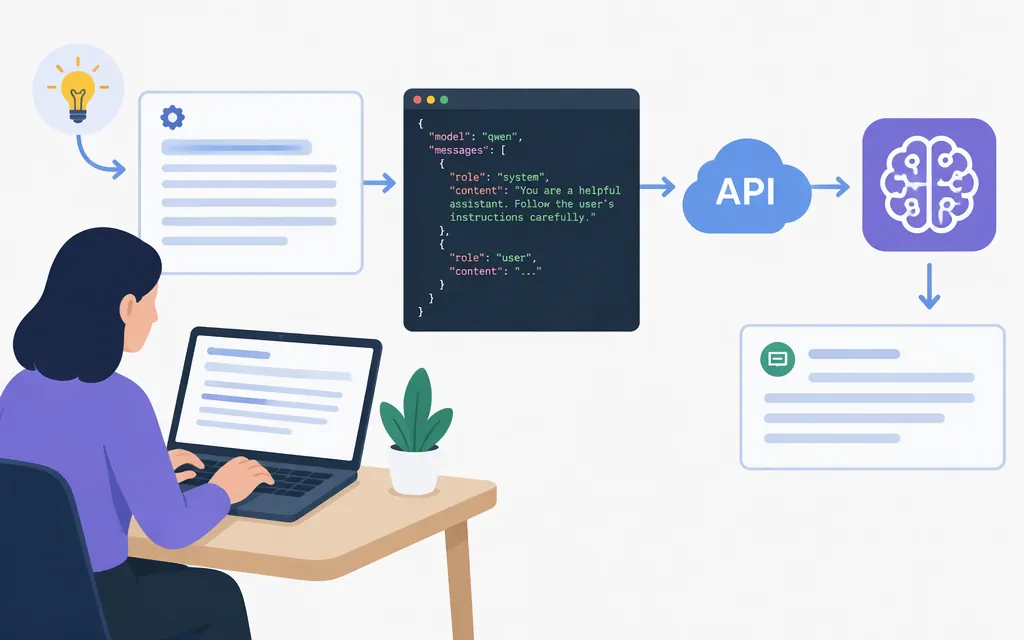
A Qwen system prompt is an instruction sent in a message with the system role. In the production API example below, put your instruction in the request’s messages array; do not paste Qwen’s raw ChatML tokens into the API request. Model Studio documents role-and-content messages, including system and user messages. (Model Studio Chat API)
There is no single prompt that is right for every Qwen model or task. Start with a short, specific instruction and test it with your chosen model and deployment.
A practical Qwen system prompt
Use this as an editable example, not an official Qwen template or a guarantee of model behavior:
You are a support assistant for [product or service].

Help users with [specific task]. Use the information provided in the conversation.
If you do not have enough information to answer, say what is missing instead of guessing.
Keep answers [desired length or tone]. Format the answer as [plain text / bullets / JSON].
Replace the bracketed text with instructions that apply to your application. Prefer concrete directions—such as “answer in three bullets” or “say when information is missing”—over vague requests like “be smart.” Keep the system message separate from the user’s question so the instruction is clear.
Send it through Alibaba Cloud Model Studio’s API
This example uses the OpenAI-compatible Chat Completions API, the US (Virginia) region, and the qwen-plus model ID. Model Studio documents qwen-plus in its Python example and lists a Virginia workspace-dedicated endpoint. Your API key, workspace, endpoint region, and model access must match your account configuration. (Model Studio Qwen-Plus API example; regional base URLs)
1. Install the SDK and set credentials
python -m pip install -U openai
export DASHSCOPE_API_KEY="your-model-studio-api-key"
export MODEL_STUDIO_WORKSPACE_ID="your-workspace-id"
For the workspace-dedicated Virginia endpoint shown here, use the workspace ID associated with your Model Studio account. The Chat API documentation points to the Workspace Details page in the console. Create or select an API key for the same region as the endpoint; Model Studio keys and endpoints are region-specific. Store the key as an environment variable or in a secrets manager, not in source code. (Model Studio Chat API; API key guidance)
2. Create and run qwen_prompt.py
import os
from openai import OpenAI

client = OpenAI(
    api_key=os.environ["DASHSCOPE_API_KEY"],
    base_url=(
        f"https://{os.environ['MODEL_STUDIO_WORKSPACE_ID']}"
        ".us-east-1.maas.aliyuncs.com/compatible-mode/v1"
    ),
)

completion = client.chat.completions.create(
    model="qwen-plus",
    messages=[
        {
            "role": "system",
            "content": (
                "You are a support assistant. Answer clearly and briefly. "
                "If you are unsure, say what information is missing."
            ),
        },
        {
            "role": "user",
            "content": "What information should I include in a support request?",
        },
    ],
    stream=False,
)

print(completion.choices[0].message.content)
Run it with:
python qwen_prompt.py
The base URL follows Model Studio’s documented Virginia workspace-dedicated format: https://{WorkspaceId}.us-east-1.maas.aliyuncs.com/compatible-mode/v1. The code sends separate system and user messages, requests a non-streaming response, and prints the assistant content from the first choice. (Model Studio Chat API; Qwen-Plus Python example)
This is a regular chat example; it does not enable a deep-thinking mode. Model Studio says thinking controls vary by model. If you want to use a thinking mode, follow the instructions for your specific model. (Deep-thinking API guidance)
If Qwen does not follow the system prompt
Check these items in order:
- Check the request: Confirm the instruction is included as a
systemmessage and the question is a separateusermessage. - Check the model and region: Verify the model ID is correct and available to your account in the endpoint’s region. Model Studio documents region-specific keys, endpoints, and model lists. (API key guidance)
- Check the endpoint and credentials: Confirm the workspace ID, endpoint region, and API key match.
- Try a narrow test: Send one simple instruction and one user question, then compare that request with your full application request. This can help isolate message assembly or other application logic from prompt wording.
- Check model-specific guidance: Consult the selected model’s current API documentation for any restrictions before relying on a system message.
If you serve open-weight Qwen locally through Ollama or vLLM, the runtime and chat template are also part of the request path. Hosted Model Studio API instructions and local-runtime troubleshooting are different; do not apply local commands as if they were Model Studio API steps.
API message format versus Qwen’s chat format
For the API example above, send role-and-content objects in messages; the service handles the API-to-model formatting. Qwen’s documentation separately describes the model-level ChatML format, <|im_start|>{{role}}\n{{content}}<|im_end|>, and says that starting with Qwen3, no default system messages are used. That ChatML description is not the JSON request format shown above. (Qwen Key Concepts)
Sources
- Alibaba Cloud Model Studio: OpenAI-compatible Chat API
- Alibaba Cloud Model Studio: Qwen-Plus Python example
- Alibaba Cloud Model Studio: Base URLs by region and plan
- Alibaba Cloud Model Studio: Obtain an API key
- Alibaba Cloud Model Studio: Deep-thinking API guidance
- Qwen documentation: Key Concepts
Sources
OpenAI compatible - Chat — Alibaba Cloud Model Studio
Model calls in a sub-workspace — Alibaba Cloud Model Studio
Base URL overview — Alibaba Cloud Model Studio
Obtain an API key — Alibaba Cloud Model Studio