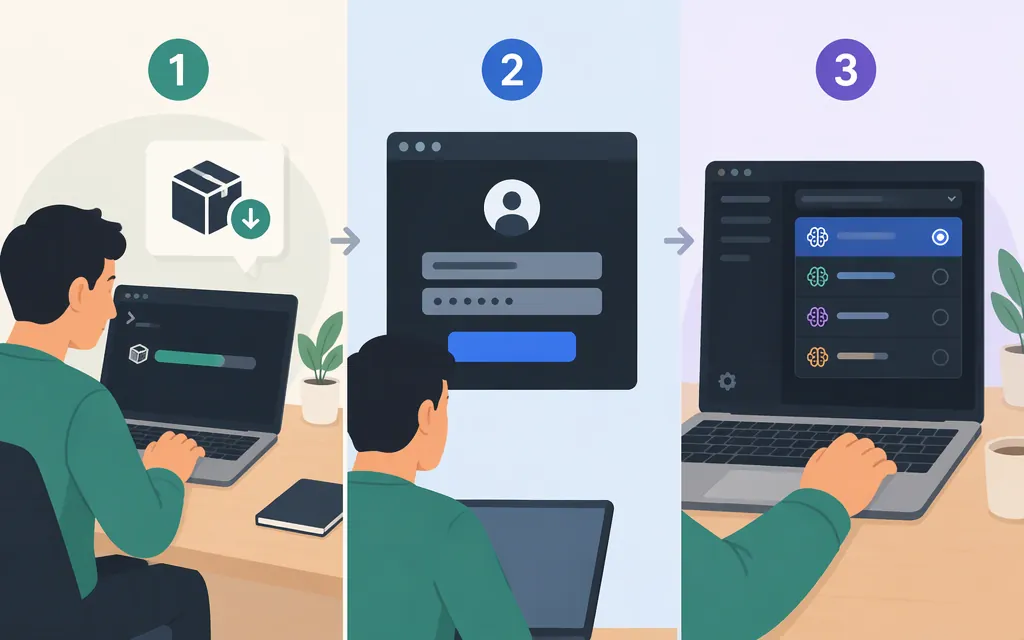
Quick answer
Install Claude Code, open a terminal in your project directory, and run claude. On first launch, sign in with an eligible Claude account or choose a supported Console or cloud-provider route. If Claude Code asks whether to trust the project folder, review it first: trusting a workspace lets its project-level permission settings take effect. That is separate from later prompts to approve particular actions. See Anthropic’s quickstart, permissions guide, and security guide.
Install and start Claude Code
You need a terminal, a code project, an internet connection, and an eligible account or supported provider. Anthropic lists macOS 13 or later, Windows 10 version 1809 or later (or Windows Server 2019 or later), Ubuntu 20.04 or later, Debian 10 or later, and Alpine Linux 3.19 or later. The documented hardware baseline is 4 GB RAM and an x64 or ARM64 processor. Claude Code requires a supported country and works with Bash, Zsh, PowerShell, or CMD. Git is optional. On native Windows, Git for Windows is recommended if you want Claude Code’s Bash tool; without it, Claude Code uses PowerShell as its shell tool. WSL does not require Git for Windows. Check the full system requirements for your environment.
1. Install the CLI
Anthropic recommends its native installer. Use the command for your shell:
macOS, Linux, or WSL:
curl -fsSL https://claude.ai/install.sh | bash
Windows PowerShell:
irm https://claude.ai/install.ps1 | iex
For Windows Command Prompt, use the separate CMD command in Anthropic’s installation guide; PowerShell and CMD commands are not interchangeable. After installation, open a new terminal and check that the CLI is available:
claude --version
A version number confirms the CLI is available in your terminal. If the command is not recognized, follow the official installation troubleshooting guide.
2. Launch from your project directory
Change to the project you want Claude Code to work in, then start it:
cd path/to/your-project
claude
In VS Code, open the project folder, choose Terminal → New Terminal, and enter claude. Check that the terminal is in the intended project directory before continuing. This VS Code sequence is also described in a third-party walkthrough; use Anthropic’s documentation for current installation and account instructions.
3. Sign in and review project access
On first launch, Claude Code normally opens a browser sign-in flow. If the browser does not open automatically, press c to copy the login URL and open it in a browser. If prompted, paste the login code back into the terminal. A successful sign-in displays Login successful and prompts you to continue. If an API key is configured, Claude Code may ask whether to use it instead. See Anthropic’s authentication instructions.
When you start in an untrusted folder, Claude Code shows a workspace-trust dialog. Review the project before deciding: after you trust it, project-level allow rules and additional-directory settings in .claude/settings.json can grant capabilities or file access. Trust does not approve every subsequent action; permission settings and prompts still govern actions such as file changes and command execution. See the security guide and permission documentation.
After sign-in, try a read-only request first, such as: “Summarize this project’s structure and identify its test command. Don’t edit files yet.” Confirm the project context before asking for changes.
Which account and billing route should you use?
Choose the route that matches how you or your organization wants to access and pay for Claude Code:
- Individual subscription: Sign in with a Claude Pro, Max, or Ultra account. Claude Code usage is covered under that plan’s usage limits. The free Claude plan is not listed among the supported individual subscription routes in the Claude Code authentication guide.
- Team or Enterprise: Sign in with the Claude account invited by your organization’s administrator. Usage and controls depend on the organization’s plan and settings.
- Anthropic Console: Sign in with Console credentials; creating an API key is not required just to sign in. Console-based usage is billed to the Console account. Most organizations use prepaid usage credits; organizations with an invoicing arrangement are billed monthly. Check that the Console organization has the applicable billing arrangement before using this route.
- Cloud provider: Organizations can configure supported options such as Amazon Bedrock, Google Cloud (Vertex AI), or Microsoft Foundry. Follow your administrator’s setup instructions; provider credentials and billing apply.
One practical gotcha: if ANTHROPIC_API_KEY is set in your environment, Claude Code prioritizes that key over subscription authentication. Usage is then billed to the API account associated with the key, even if you are also signed in with a Claude subscription. Run /status in Claude Code to check the active authentication method. Anthropic explains the routes in its authentication guide, billing in its Console billing guide, and key precedence in its API-key environment-variable guide.
Claude Code or a production model API?
Use Claude Code when you want an interactive coding agent to work in a project from your terminal or supported IDE. Use a model API in your application when you are building software that makes model requests as part of its own product or service. These are distinct workflows, with different configuration and billing; having an API key or access to an API provider does not by itself establish that the provider can be used with Claude Code.
Claude Code can be routed through compatible gateways, but the gateway must support the API format and Claude Code features required by your setup. Anthropic says it does not endorse or audit third-party gateways and does not support routing Claude Code to non-Claude models. Therefore, don’t assume a production API provider can run the Claude Code CLI merely because it offers model APIs. Verify the provider’s specific Claude Code compatibility, endpoint, authentication, supported model identifiers, and limitations before choosing it. See Anthropic’s gateway documentation.
Choose a model for the coding task
Start with Sonnet for most coding work. Anthropic describes it as a fast, capable, cost-efficient option for everyday coding. Consider Opus for harder reasoning tasks, such as difficult debugging, architectural decisions, or broad refactors; it uses more of your usage allowance. Haiku is the faster, lower-cost option for simple edits and quick lookups. These are practical starting points, not guarantees that a model will perform best on every repository or task. Exact model names and availability vary by account and provider. Use /model to see the choices available in your current setup and switch models; the command is the source of truth for your account. See Anthropic’s model and usage guidance and model configuration reference.
For application API calls, do not copy a Claude Code alias such as sonnet or opus as though it were necessarily an API model ID. Check the API provider’s current model identifiers and billing details separately.
If you need to compare available models for your own work, use the same representative bug fix, test-writing task, or small feature with each option. Check correctness, review the diff, run the project’s tests, and compare the usage or cost information shown by your provider. Choose based on the results and the constraints that matter for your workload—not an uncited benchmark score.
Quick checks if something goes wrong
claudeis not recognized: Open a new terminal after installation and check the PATH troubleshooting steps in the official guide.- Claude Code opened the wrong project: Exit, change to the intended directory, and launch
claudeagain. - Sign-in does not complete: Follow the URL or code prompt shown in the terminal and confirm that your account or provider is eligible for Claude Code.
- You’re unsure which account is paying: Run
/statusto check the active authentication method, and check whether an API key is configured. - Claude proposes a risky action: Review the workspace and the specific permission request; don’t approve an action you don’t understand.
Sources
Advanced setup - Claude Code Docs
Troubleshoot installation and login - Claude Code Docs
Authentication - Claude Code Docs
Configure permissions - Claude Code Docs
How do I pay for my Claude API usage? - Claude Help Center
Manage API key environment variables in Claude Code - Claude Help Center
Models, usage, and limits in Claude Code - Claude Help Center
Other LLM gateways - Claude Code Docs
Model configuration - Claude Code Docs
VS Code is your Friend: How to get up and running with Claude Code and VS Code