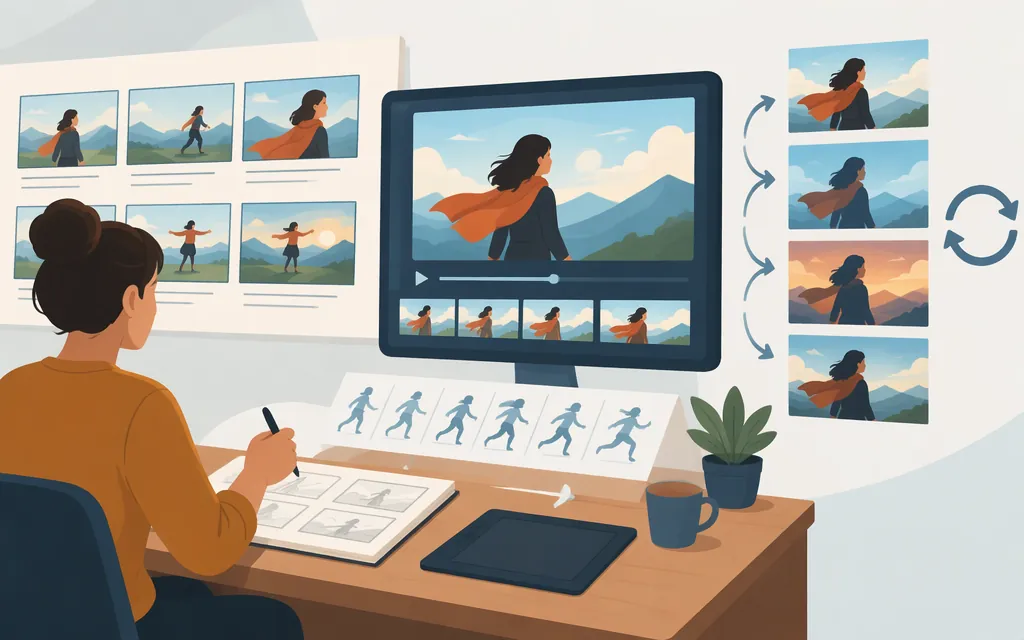
A useful Seedance 2.0 prompt reads like a compact shot list: say what happens in each beat, how the subject moves, what the camera does, and which visual details carry across the sequence. When a result misses your intention, revise the specific beat or movement instruction that caused the mismatch instead of adding more details everywhere.
The examples below are prompt-writing suggestions, not tested outputs or guarantees. Available controls, asset support, and prompt behavior can vary by generation interface. The competitor guides linked here offer practical ideas, but they are not official Seedance documentation: HeyGen’s prompting guide and MindStudio’s timeline-prompting article.
A simple shot-by-shot prompt structure
For each beat, specify:
- Sequence position: a timestamp or a label such as “Opening,” “Action,” or “Close.”
- Framing: wide shot, medium shot, or close-up.
- Subject and action: who or what moves, and what they do.
- Camera behavior: fixed framing or one main camera move.
- Visual detail: setting, lighting, color, or mood that matters in that beat.
Add a short overall style direction if you want a consistent look across the sequence. Competitor prompt guides recommend using focused beats and clear camera directions; treat those as useful drafting conventions, not product requirements. Suggested beat counts and clip lengths differ between guides, so don’t treat an example timeline as a supported duration limit.
Example storyboard: a bicycle repair at dusk
Illustrative prompt structure only. The sequence labels below show how a writer might divide a planned sequence; they do not establish a supported Seedance duration or guarantee that the output will follow the timeline.
Overall look: Grounded documentary style, cool evening light with warm workshop lamps, restrained colors.
Opening: Wide shot of a small bicycle workshop at dusk. A mechanic wheels a dusty bike inside. Camera: fixed.
Action: Medium shot. The mechanic kneels beside the rear wheel and turns the pedals by hand. Camera: slow push-in.
Detail: Close-up of the mechanic’s fingers tightening a bolt; the wheel spins briefly and slows. Camera: fixed.
Finish: Medium shot. The mechanic stands, tests the brakes, and rolls the bike toward the open door. Camera: gentle pull-back.
To adapt this for your own idea, keep the sequence’s main action and progression, then change the subject, setting, and visual style. If a beat feels crowded, simplify it before adding more camera or atmosphere instructions.
Separate subject movement from camera movement
Make it clear whether the subject, the camera, or both should move. A movement instruction is easier to interpret when it names the action and camera behavior separately:
- Moving subject, fixed camera: “A dancer turns slowly in place. The camera holds a fixed medium shot.”
- Still subject, moving camera: “A glass vase rests on a table. The camera makes a slow push-in.”
- Both moving: “A jogger runs along the path as the camera tracks beside them.” If you need both kinds of motion, keep each instruction simple and decide which matters most.
Use specific verbs—turns, lifts, walks, tracks, pans—and describe pace when it matters, such as slowly or in a short burst. MindStudio recommends recognizable cinematography terms such as “dolly,” “pan,” and “tracking shot,” while HeyGen advises using one main camera move per shot. These are recommendations, not assurances that a particular term or movement will be followed exactly.
If you want the subject to move but the frame to stay steady, say so directly: “The dog trots toward the camera; the camera remains fixed.” If you want the camera to move, name that action: “The camera slowly pans left as the boat crosses the frame.” Avoid piling several camera directions into one beat unless those changes are essential.
Prompt with image and video references
Reference prompting depends on what the Seedance interface you’re using supports. Check that interface’s instructions for accepted asset types and how to attach or identify them. The examples here describe the intended role of a reference in plain language; they do not rely on a particular asset-label syntax or promise that identity, framing, or motion will be preserved.
If you’re starting from a still image
Describe the changes you want rather than restating every visible detail. For example, with a portrait image supplied as a reference:
“The person slowly turns toward the window and smiles slightly. A few loose strands of hair move in a gentle breeze. Keep the camera still; preserve the quiet, soft-light mood of the reference.”
The instruction tells the model what should change while identifying what you’d like to retain. “Preserve” describes your goal; it is not a guarantee that the result will match the reference exactly.
If you’re using a reference video for movement
State what you want to borrow from the clip and what should change. For example, with a reference video showing a slow camera push toward a person at a desk:
“Use the reference for the gradual push-in and its pace. Show a florist arranging stems on a workbench instead. Keep the camera movement; change the subject, setting, and color palette to warm morning light.”
This separates the intended motion transfer from the new scene. A HeyGen guide gives similar advice about distinguishing motion to retain from visual details to reinterpret, but it does not establish that motion transfer will work reliably in every interface.
Iterate by fixing the clearest mismatch
Use a small revision loop:
- Compare the result with your intention. Identify the most noticeable miss: the action, framing, camera movement, sequence, or visual style.
- Change the instruction related to that miss. Make the action more specific, clarify whether the camera moves, or simplify an overloaded beat.
- Generate again and compare. Check whether the revised result better matches that one intention. If not, try a different wording or remove competing instructions.
For example, if a prompt asks for a character to run, look back, open a door, and meet a close-up during one beat, split those events into separate beats or remove the least important action. If the result moves the camera when you wanted a steady frame, change “follow the character” to “the character runs across the frame; the camera holds fixed.”
MindStudio identifies crowded beats, vague camera directions, inconsistent names for the same subject, and too many events for a short clip as issues worth revising. That’s practical troubleshooting advice, not a validated evaluation rubric. Change one main instruction at a time when you can; it makes the effect of each revision easier to judge. Don’t assume a “fast” or “quality” model option is available—confirm that in your own interface before building it into your workflow.
Continue with the video API guide
For API-related next steps, see the Seedance API practical evaluation guide. It offers guidance for evaluating Seedance API access and provider capabilities; it is not confirmed here as endpoint-level implementation documentation for a particular Seedance version or generation channel. Check the provider’s current documentation for version-specific integration instructions. This prompt guide does not provide endpoint, authentication, request, or response details.
Sources
Seedance API: A Practical Evaluation Guide | Token Forge Cloud
Seedance 2.0: Complete Prompting Guide — HeyGen
How to Use Timeline Prompting with Seedance 2.0 for Cinematic AI Video — MindStudio