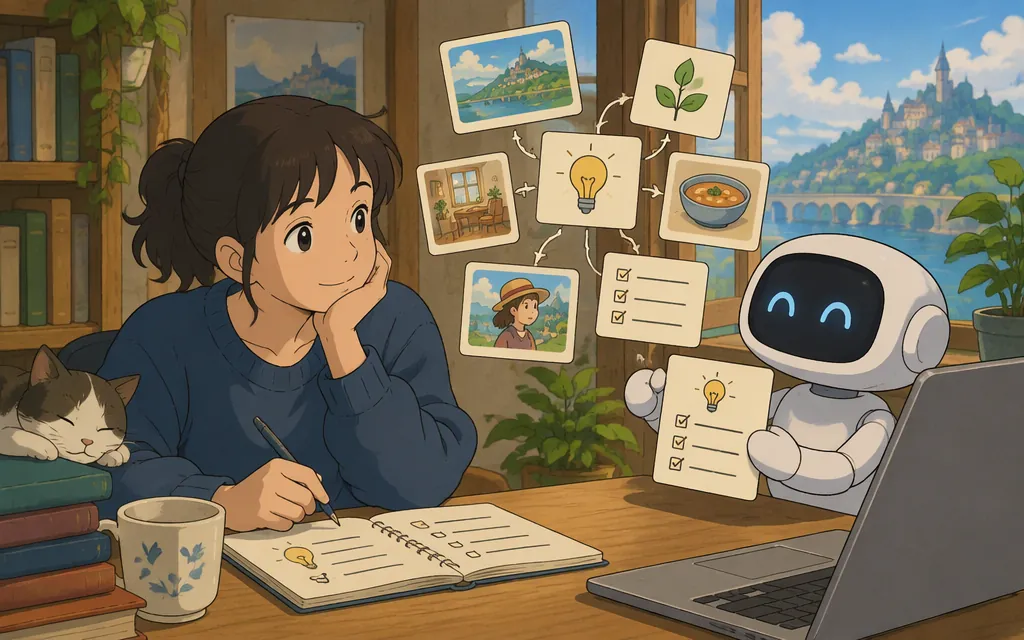
Copy-and-paste Studio Ghibli-inspired prompts
These are original prompt suggestions, not official OpenAI prompts or tested recipes. They describe a mood and visual direction; results can vary.
To transform an uploaded image
Reimagine the uploaded image as a whimsical, hand-painted animated-film illustration with a Studio Ghibli-inspired feel. Preserve the main subject’s identity, pose, framing, and important objects. Use soft colors, warm natural light, richly detailed surroundings, and a gentle, dreamlike atmosphere. Keep [specific detail] unchanged. Do not add text.
Replace [specific detail] with something you want to preserve, such as “the red scarf” or “the number of people.”
To create a new scene
Create an original, Studio Ghibli-inspired animated-film scene of [subject] in [setting]. Show [specific action] in a wide composition, with a softly painted background, gentle colors, warm evening light, and small environmental details such as [details]. The mood is peaceful and quietly magical. Do not include text or existing copyrighted characters.
Fill in the brackets with concrete details—for example, “a child and a small dog,” “a hillside train station,” and “waiting beside a flower stall.” These are suggestions, not tested outputs.
How to use a prompt in ChatGPT
- To make a new image, describe it in a conversation or select Images, then enter your prompt.
- To edit a photo, upload an existing image (or choose an image ChatGPT created) and describe the change you want. Paste the uploaded-image prompt above and specify what should stay the same.
- If the result needs work, ask for one specific change at a time. For example: “Make the background a little warmer, but keep the subject, pose, and framing unchanged.”
OpenAI’s Help Center describes creating images by entering a description in a conversation or selecting Images, and editing by choosing or uploading an image and describing the change. The exact interface and whether the feature is available to you can depend on your account and current ChatGPT experience; check what appears in your account. (OpenAI Help Center)
Can you do this with a production API?
Yes. OpenAI documents image generation through the Responses API’s image-generation tool. The request pattern below follows its documented Python example for generating an image from a text prompt. The tool also supports optional image inputs, but this sample does not demonstrate an image-editing request. (OpenAI image-generation tool guide)
Install the Python SDK with pip install openai. Create an API key and set it as the OPENAI_API_KEY environment variable; the SDK reads the key from the environment. Keep the key out of your source code. (OpenAI Developer quickstart)
from openai import OpenAI
import base64

client = OpenAI()

response = client.responses.create(
    model="gpt-6-astra",
    input=(
        "Create an original, softly painted animated-film scene of a small "
        "village beside a lake at sunset, with gentle colors and a dreamlike mood."
    ),
    tools=[{"type": "image_generation", "model": "gpt-image-2.5-sunburst"}],
)

image_data = [
    output.result for output in response.output
    if output.type == "image_generation_call"
]
if image_data:
    with open("image.png", "wb") as image_file:
        image_file.write(base64.b64decode(image_data[0]))
The image-generation guide documents the image_generation_call output type, its base64-encoded result, and decoding that result to save the image. (OpenAI image-generation tool guide)
Cost and limits: ChatGPT and API billing are separate. This Responses API request uses a supporting model as well as the image-generation model, so the total is not just the image-output charge. OpenAI lists GPT-6 Astra at $10 per million input tokens and $50 per million output tokens for Standard processing. The image model has separate text-input and, when an input image is supplied, image-input charges; generated image output is listed at $30 per million tokens with Standard processing or $15 with Batch processing. These are token-based rates, not fixed per-image prices; actual cost depends on usage. Check the current pricing pages for applicable rates and limits before estimating a workload. (OpenAI API pricing; GPT-Image-2.5 Sunburst model page; OpenAI billing help)
A quick note on results and images
Prompt wording cannot guarantee a particular look or preserve every detail perfectly. If you upload an image, make sure you have permission to use it. An OpenAI Developer Community user suggested “convert this image into Ghibli art studio style,” but described the result as inconsistent; treat that as an anecdotal alternative, not official guidance. (OpenAI Developer Community)
Sources
Developer quickstart — OpenAI API
GPT-Image-2.5 Sunburst Model — OpenAI API
Managing billing for ChatGPT and the API platform — OpenAI Help Center
Images in ChatGPT — OpenAI Help Center
“Ghibli” use without subscription — OpenAI Developer Community