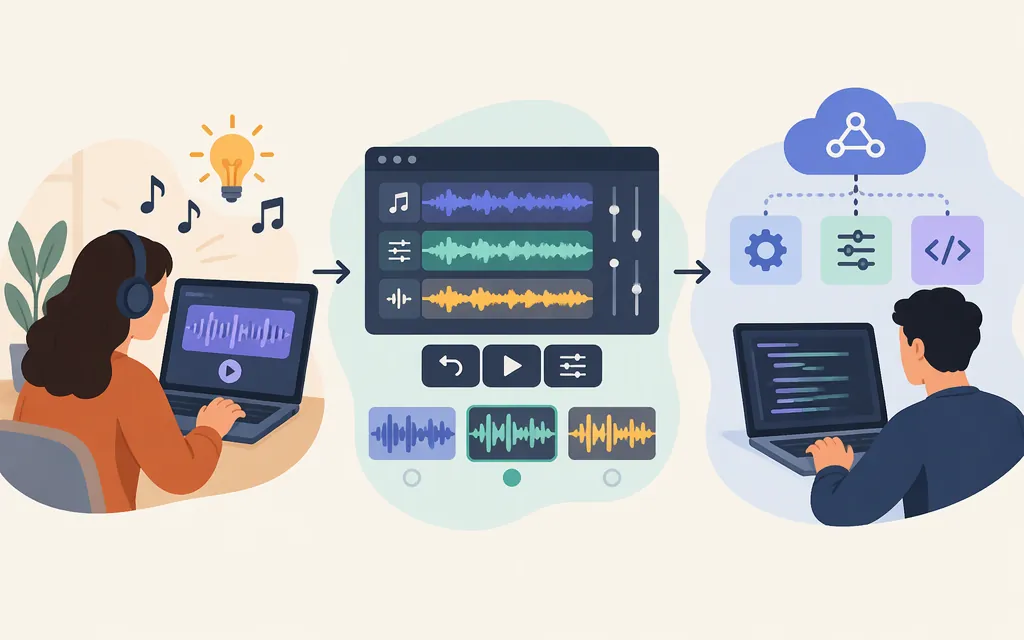
Quick answer: For a first song, use Suno’s Create page and start in Simple mode: describe the sound you want, then review the generated result. Choose Custom mode when you want to supply your own lyrics or adjust creative controls. Suno’s official documentation also describes an MCP connector in beta for compatible AI assistants. That is not the same thing as a documented production REST API for calling a music model from your application. (help.suno.com)
1. Make a first song in Simple mode
- Open Suno’s Create page and choose Simple.
- Write a short description of what you want to hear. Include a genre or mood and, if useful, instruments, vocal style, or a broad song-structure idea. Suno’s example is a synth-pop song about having fun all night.
- Submit the description to generate music.
- Listen to the result and note what you want to change—for example, a different mood, more prominent instrumentation, or a different vocal direction. Revise the description and generate again.
Simple mode is a good starting point when you want Suno to turn an idea into a song without first preparing lyrics. Suno’s help documentation confirms the Create-page workflow and prompt description; the suggested review-and-revise loop is a practical way to compare results, not a guarantee that any wording will produce a particular sound. (help.suno.com)
Example prompt: “Warm indie folk, intimate lead vocal, fingerpicked acoustic guitar, gentle percussion, reflective verses that open into a hopeful chorus.” This is an illustrative prompt, not a tested or guaranteed recipe.
2. Use Custom mode for lyrics and more control
Choose Custom from the options at the top of the Create form when you want to provide your own lyrics. Suno’s help page says Custom mode includes a field for them; its mobile instructions also describe entering lyrics or having Suno generate them, choosing Instrumental if you do not want lyrics, adding a style and any advanced options, then adding a title and creating the song. (help.suno.com)
A useful starting arrangement is:
- Lyrics: Paste your lyrics if you have them, or use the option to have Suno generate lyrics.
- Style: Describe the broad musical direction and vocal character. For example: “dream pop, airy lead vocal, shimmering guitars, restrained drums.”
- Advanced options: Use these when you have a specific constraint or want to experiment with creative controls.
- Instrumental: Turn this on if you want a track without lyrics or vocals.
Suno documents Creative Sliders for Custom mode: Weirdness ranges from Safe to Chaos, with 50% described as the normal expected result; Style Influence ranges from Loose to Strong; and Audio Influence is available when using an audio upload. Treat these as steering controls, not precise guarantees. For a useful comparison, keep your lyrics and style constant, change one control, and listen for the difference. (help.suno.com)
Illustrative lyric-first setup: Put your verses and chorus in the lyrics field, then use a style description such as “upbeat synth-pop, clear lead vocal, pulsing bass, bright drums, energetic chorus.” If the result is too far from the described style, try stronger Style Influence; if you want a more surprising interpretation, experiment with Weirdness. Those are reasonable experiments based on Suno’s descriptions of the controls—not promises about the output.
3. Choose a model only if the choice helps
Suno’s current help pages describe three model options: v6 for a general-purpose generation, v6-wild for more unpredictable results, and v6-mini for a faster, lighter generation. The same documentation says v6 and v6-wild are available to Pro and Premier subscribers, while v6-mini is available on all plans. Suno says to select a model from the model picker at the top right of the Create form. Availability can depend on plan and feature, so use the options shown in your account. (help.suno.com)
A simple choice: start with the model available to you; try v6-wild when you actively want a less predictable direction, or v6-mini for quick exploration. The official page describes all three variants as supporting generations up to eight minutes, but that maximum does not mean every generation will be that long. (help.suno.com)
4. Review and download your result
Listen to the generated song before treating it as finished. Check whether the lyrics, vocal delivery, arrangement, and ending fit your purpose. If one part misses, make a focused change to your prompt or controls and compare the next result rather than rewriting everything at once.
To download a song, find it in your Library or Workspace, open its More Actions (…) menu, choose Download, then select an available format. Suno says MP3 downloads are available on all plans; WAV downloads are available to Pro and Premier subscribers on the website, while mobile downloads default to MP3. Download options can vary by plan, device, feature, and song. (help.suno.com)
Downloads may also be subject to account-specific limits. Suno’s current help page lists 20 monthly download credits for Pro and 60 for Premier; it says free users who joined before September 3, 2026 have up to seven trial downloads, while those who joined on or after that date may receive trial downloads occasionally. The same page says trial downloads are not eligible for commercial use. Check the current terms for your account and intended use before publishing or using a track commercially. (help.suno.com)
5. Is there a production Suno music API?
There are two different integration questions:
Suno MCP (Beta): Suno’s official help center documents an MCP connector for compatible AI assistants. It requires a Suno account and an assistant that supports MCP; the FAQ says the connector works with all Suno plans, with music creation using credits according to the plan. It also gives the MCP connection address as https://api.suno.com/mcp and says songs created through an assistant appear in the Suno Library. This is an official, beta assistant connection—not documentation for a general-purpose production REST endpoint with a model ID, JSON generation payload, or API service-level guarantees. (help.suno.com)
A production-model API for an application: The Suno documentation reviewed here does not establish a production REST API for direct model inference. Third-party services publish documentation under names such as “Suno API,” but that does not by itself make them Suno-operated or establish their authorization, stability, rights, or service terms. For example, a third-party API documentation site describes music-generation endpoints and Bearer-token authentication; treat it as that provider’s service and verify its current terms and technical details directly before building on it. (docs.sunoapi.org)
Token Forge Cloud’s public product description lists managed APIs for Qwen, DeepSeek, GLM, and Seedance; it does not list a Suno music-generation API in that description. That is not proof that no other access route exists, but it is not enough to recommend Token Forge Cloud as a provider for a Suno production-model endpoint. (tokenforgecloud.com)
Bottom line: Use Suno’s Create interface for the documented music-making workflow. Use MCP only if a beta assistant connection suits your needs. Before adopting any third-party “Suno API” for production, confirm who operates it, which model and features it actually provides, authentication and request formats, rate limits, pricing, data handling, and rights for your intended use. Do not treat an API label as evidence that it is an official Suno API.
Where to continue
Suno’s help center separates its guidance into topics such as lyrics and creative controls, models, editing, Studio, downloads, and rights and ownership. Use the relevant help article for the feature and plan you intend to use; category descriptions alone do not establish feature availability or usage rights. (help.suno.com)
Sources
What types of files can I download?
How do I connect Suno MCP (Beta) to an AI assistant?