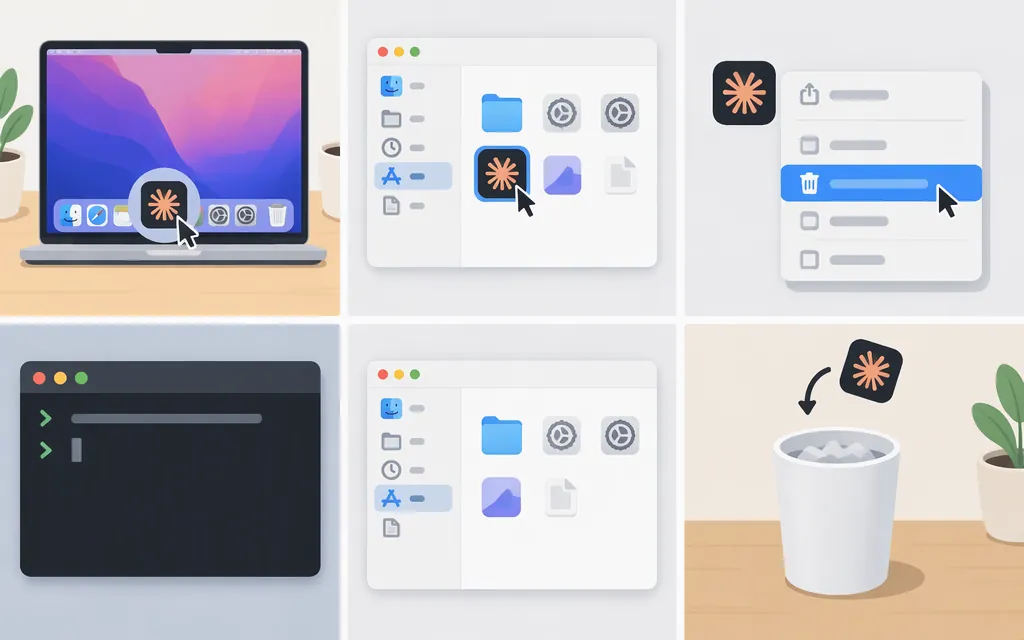
The uninstall method depends on how Claude Code was installed. For a global npm install, run npm uninstall -g @anthropic-ai/claude-code. For Homebrew, uninstall the cask you installed. Native installations have a separate procedure in Anthropic’s official setup guide. Removing the program is separate from deleting settings or project files. [1][2][3]
1. Identify the installation
In Terminal, check which claude command your shell finds and whether npm or Homebrew lists an installation:
command -v claude
type -a claude
npm list -g --depth=0 @anthropic-ai/claude-code
brew list --cask | grep 'claude-code'
Anthropic’s troubleshooting documentation distinguishes the native launcher at ~/.local/bin/claude, a legacy local npm install under ~/.claude/local/, and a global npm installation. The legacy ~/.claude/local/ path is not the same as a project-local npm dependency. More than one installation may exist, so check the relevant package-manager listings too. [2]
2. Uninstall using the matching method
Global npm install
Run:
npm uninstall -g @anthropic-ai/claude-code
This removes the global npm package; it does not remove a separate native or Homebrew installation. [4]
If Claude Code is a dependency in a project’s package.json, open Terminal at that project’s root and run:
npm uninstall @anthropic-ai/claude-code
That removes the project dependency, not a legacy install located under ~/.claude/local/. [4]
Legacy ~/.claude/local/ install: Anthropic identifies this as a legacy local npm location, but the removal command for this specific installation is not established here. Use Anthropic’s installation troubleshooting guide for guidance on this legacy case; don’t treat it as a project dependency or delete the directory blindly. [2]
Homebrew install
Check the cask name shown by brew list --cask, then uninstall that cask:
brew uninstall --cask claude-code
If the listing shows the latest-channel cask, use:
brew uninstall --cask claude-code@latest
Homebrew lists claude-code and claude-code@latest as separate casks, and Anthropic’s setup documentation distinguishes the two channels. [1][5][6]
Native install
Anthropic documents a separate procedure for uninstalling a native installation in its official setup guide. Follow that guide’s “Uninstall a native installation” section; this article does not provide the removal commands. If your installation was customized or migrated, consult the guide before removing files rather than guessing which paths to delete. [1]
3. Decide whether to keep settings and project files
Uninstalling the CLI is separate from removing configuration. Anthropic documents ~/.claude as a home-directory location for settings and other Claude Code data, and .claude/ as a project-level location. Keep those files if you may reinstall or want to preserve your setup. Don’t delete project .claude/ directories indiscriminately. Anthropic’s setup guide has a separate “Remove configuration files” section for optional cleanup. [1][7]
4. Check whether claude is still available
Open a new Terminal window and run:
command -v claude
type -a claude
If command -v finds nothing and the shell reports that claude is not found, the command is no longer available through that shell’s command resolution. That does not prove that settings, project files, or installations outside the shell’s search path were removed.
If a path remains, match it to the installation method above and uninstall that copy. If type -a reports an alias, inspect it with:
alias claude
If you recognize an old alias in your shell’s startup configuration, remove only that alias entry and open a new Terminal window. If you can’t identify its source, don’t delete the target blindly; consult Anthropic’s troubleshooting guide or support. [2]
Production Claude API integrations
The commands above remove a local Claude Code installation; they do not perform an API-key revocation in the Claude Console. Anthropic documents API keys and service-account keys separately, including keys used by production services. If a production application runs on this Mac, assess that application separately before removing anything it depends on. [8]
Sources
Advanced setup — Claude Code Docs
Troubleshoot installation and login — Claude Code Docs
Uninstalling packages and dependencies — npm Docs
Homebrew Formulae: claude-code
Homebrew Formulae: claude-code@latest