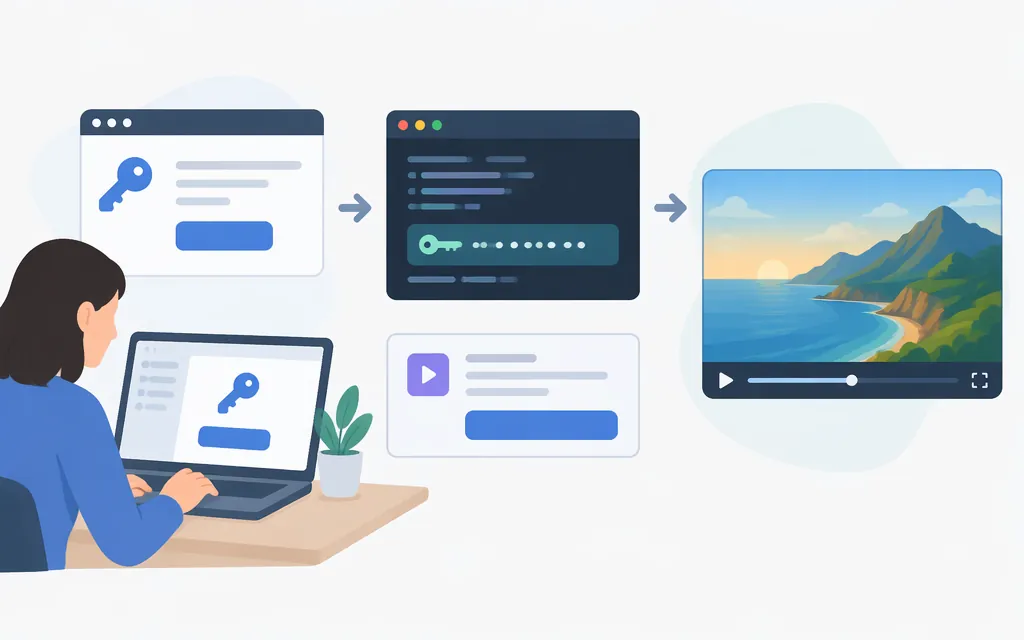
As of November 11, 2026: Google documents Veo access through the Gemini API. Create a Gemini API key in Google AI Studio, keep it on your server, and use an available video-generation model from the current model documentation. A key alone does not guarantee that a model is available to your account or that its usage is free.
Get a Gemini API key
- Sign in to Google AI Studio and open its API keys page.
- Create a key or select an existing key and project. Check the applicable billing, quota, region, and model-access requirements for that project.
- Store the key as an environment variable on your server. Google client libraries can read
GEMINI_API_KEYorGOOGLE_API_KEY; if both are set, Google documents thatGOOGLE_API_KEYtakes precedence. - Never commit the key to a repository, share it publicly, or put it directly in production browser or mobile code.
See Google's API key guide and rate-limit documentation.
Generate a video
Google's video generation guide describes an asynchronous workflow: submit a prompt to a supported video model, poll the returned operation until it finishes, then download the resulting file. Follow the guide's current SDK or REST example and verify the model ID in your account first.
Important availability note: Google's documentation lists veo-3.1-generate-preview and veo-3.1-fast-generate-preview as discontinued on October 22, 2026, and directs users to Gemini Omni Flash or a generally available model through Gemini Enterprise Agent Platform. Some examples may still display the older IDs. Check the Veo model page and current video guide before copying one into a production integration. The alternative model's API request format and authorization requirements should be checked separately rather than assumed to be identical.
Handle errors and costs
- Authentication failure: confirm that the key belongs to the intended project and is being supplied according to the SDK or REST documentation. Do not print the key in logs.
- Permission or unavailable-model error: check the exact model ID, project access, region, account requirements, and whether the model has been retired.
- Rate limit or quota error: inspect project usage and limits, then retry only according to the provider's guidance. For an asynchronous request, retain the operation name so you can check its status instead of blindly submitting duplicates.
- Cost: review the current pricing for the chosen model and output settings before running a generation. Billing, quota, and availability can change.
Gemini API vs. Google Cloud
A Gemini API key is obtained and managed in Google AI Studio. Enterprise Agent Platform is a separate Google Cloud route with its own setup and authentication requirements. Choose the route documented for the model you intend to use; do not assume a key for one route works on the other.
Sources: Gemini API key guide, video generation guide, and Veo model page.
Editorial status: manually prepared; pending human review. Not published. No API request or code execution was performed for this article; verify model availability and pricing again before publication.
Sources
https://ai.google.dev/gemini-api/docs/api-key
https://ai.google.dev/gemini-api/docs/rate-limits
https://ai.google.dev/gemini-api/docs/video
https://ai.google.dev/gemini-api/docs/models/veo-3.1-generate-preview