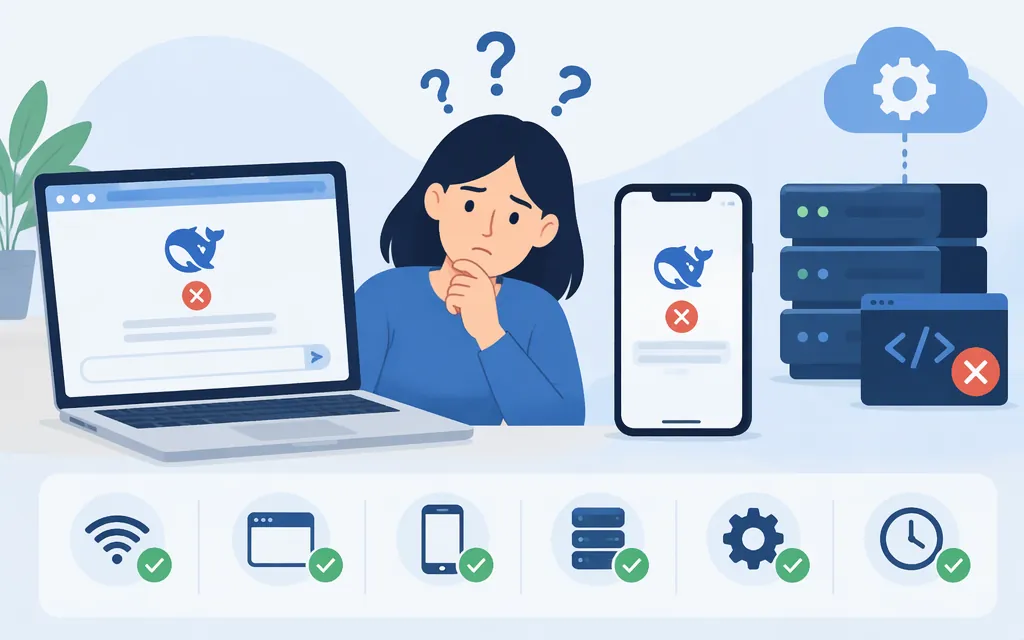
DeepSeek may not be working because of a service interruption, a problem with your connection or browser, an account or app issue, or an API configuration error. The symptom alone doesn’t identify the cause. First check DeepSeek’s official status page, then see whether the problem is limited to one device, network, or product. For API failures, diagnose the documented API setup separately from website or app access.
Check the DeepSeek status page for current service information. Status can change, and the page’s component details may not represent every chat or app feature.
First, identify which DeepSeek service is failing
- Website or app: Does the page fail to load, stay blank, or stop responding? Does the problem happen on another device or network?
- API: Does your application receive an HTTP error, time out, or fail to parse a response? Save the exact response before changing your setup.
- Only one account or session: Can you use the website or app in another browser or after signing in again?
If several users or devices are affected at the same time, a service issue becomes more plausible. If only one browser, device, or deployment fails, investigate that setup first. These comparisons help narrow the problem; they do not prove its cause.
If the DeepSeek website or app will not load or respond
Try these relatively low-impact checks in order:
- Check the status page. Look for an incident affecting the service you use. If one is listed, wait for an update or resolution rather than repeatedly changing device settings. DeepSeek’s status page also links to service information and incident history.
- Compare your connection. Open another site or app. If possible, try DeepSeek on a different network or device. A speed test can help identify a connection problem, but no particular speed threshold is established here as a DeepSeek requirement.
- Refresh or try a private browser window. If that works, a browser extension or stored site data may be involved. Trying another browser can help isolate a browser-specific problem.
- Update the app or browser. Get the app through an official store or DeepSeek’s download page, and install available browser updates.
- If the issue looks session-specific, sign out and sign in again. For a browser-specific problem that persists, clearing site data may be worth trying—but clearing cookies can sign you out. Browser menus and app settings vary, so avoid assuming one set of steps fits every device.
- Consider network filters only if the problem occurs on one network. A VPN, proxy, firewall, or security tool may be relevant to investigate, but that does not mean DeepSeek generally blocks VPNs. Follow workplace rules and don’t disable security controls you don’t manage.
If one of these steps fixes the problem, stop there. Reinstalling an app or changing network security settings is usually unnecessary when a simple connection or browser test resolves it. Third-party troubleshooting guidance also suggests checking connectivity, sessions, browser data, and updates, but those suggestions are not a diagnosis of your particular issue. (AllThings How)
If a production DeepSeek API request fails
Website and app fixes won’t correct an API configuration error. Capture the failure first, then compare your integration with the current official API documentation:
- Record the exact HTTP status, response body, timestamp, and time zone. Keep response headers or a request ID if your client provides them. Don’t log or share your API key.
- Check the configured base URL, endpoint, model ID, and request format. The official quick start lists
https://api.deepseek.comas the OpenAI-format base URL, specifies Bearer authentication, and shows model IDs includingdeepseek-flashanddeepseek-v4-pro. Confirm the live documentation before changing production configuration; supported identifiers and behavior can change. - If the response indicates an authentication problem, verify the key and header. Confirm the application is loading the intended key securely and sending it using the documented Bearer authentication scheme. The documentation available here does not establish a universal status-code mapping for authentication failures, so check the full response and current API reference rather than assuming a particular code always means a bad key.
- If the response indicates invalid input, inspect the request body against the endpoint schema. Correct the model, fields, types, or required content that the response identifies. The API reference documents some invalid-input cases as HTTP 400, but that does not establish one universal meaning for every 400 response. (Chat Completions API reference)
- For HTTP 429, check account-level concurrency before retrying. DeepSeek documents 429 when the account’s concurrency limit is exceeded. Reduce simultaneous in-flight requests or consult the rate-limit documentation for the applicable limits and options. A 429 is not, by itself, evidence of an invalid key.
- If you suspect insufficient balance, check the account balance endpoint. DeepSeek documents a balance response with an
is_availablefield indicating whether the balance is sufficient for API calls. This check can help investigate balance availability; it does not establish that every payment or quota failure has a distinct HTTP status. (Get User Balance API) - For a server-side error or a request with no HTTP response, use a separate diagnostic path. If you receive an HTTP response, preserve its status and body, check the status page, and consult DeepSeek’s API error-code guidance. If there is no response, check DNS, TLS, network connectivity, timeout settings, and the configured base URL; HTTP error-code guidance cannot classify a request that never received an HTTP response. Don’t assume a general retry rule: retry a server error only when the current documentation or a service notice supports it. Otherwise, stop unbounded automatic retries, preserve the response, and escalate persistent failures through the API support contact listed in the API documentation.
Quick decision: Correct authentication or malformed input before resending the request; resolve an indicated balance problem; reduce simultaneous requests for the documented account-level 429 condition. For server errors, retain the response and check the official error guidance before retrying. If the retry conditions remain unclear or the failure persists, avoid an automatic retry loop and contact API support.
For a minimal test, use an example from the official quick-start documentation in a safe environment. Avoid unverified status endpoints or third-party commands in production. If your minimal request works but the application fails, compare its payload, model selection, timeout, streaming handling, and network path.
Still not working? Prepare a useful, safe report
Before seeking help, collect:
- Whether the issue affects the website, app, or API
- Approximate time and time zone, and whether it reproduces on another device or network
- Device, operating system, browser, app, or SDK version where relevant
- The exact error text or HTTP status and response, with secrets removed
- Steps already tried and, for API issues, a minimal redacted reproduction or request ID if available
Do not send API keys, passwords, or sensitive prompt contents. For app support, DeepSeek’s Google Play listing provides service@deepseek.com under “Contact us.” For website issues, the official DeepSeek chat page displays a “Contact us” link, but the information available here does not confirm whether it handles general access failures. The consumer FAQ covers sign-in issues; no response-time commitment is established here. For API issues, the API documentation lists api-service@deepseek.com.
Sources
Your First API Call | DeepSeek API Docs
Chat Completions API | DeepSeek API Docs
Rate Limit & Isolation | DeepSeek API Docs
Get User Balance | DeepSeek API Docs
Error Codes | DeepSeek API Docs
DeepSeek API | DeepSeek API Docs
How to Fix DeepSeek AI Assistant Not Responding